2. Crate Account
2.1 Student Registration
Creating a student account is the first step toward accessing courses, webinars, AI learning tools, and student services on the platform.
2.1.1. Step-by-Step Registration Process
-
Visit the official E-Tutors City https://e-tutorscity.com/ website homepage.
-
Click the Sign Up button located in the top navigation menu.
-
From the registration options, select the Student account type.
Important: Selecting the Student option ensures that you receive access to student dashboards, course enrollment features, assignments, and learning resources.
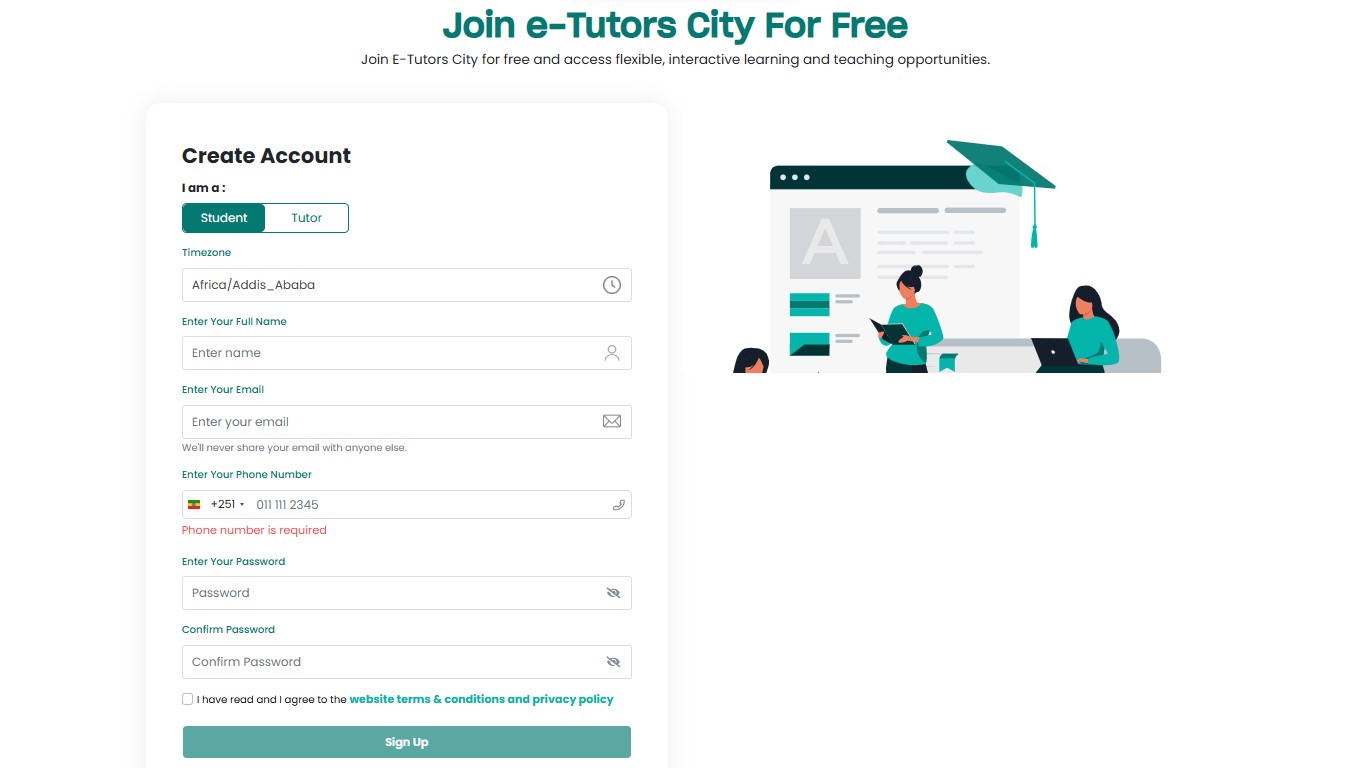
- Fill in the required registration information:
- Timezone (Example:
Africa/Addis_Ababa) - Full Name
- Email Address
- Phone Number
- Password
- Timezone (Example:
Password Recommendation: For better account security, use a strong password that includes uppercase, lowercase, numbers, and special characters.
- Carefully read the Terms & Conditions and Privacy Policy.
- Check the agreement checkbox to continue.
- Click Sign Up to create your account.
2.1.2. Registration Interface Example
2.2 Account Verification
To improve account security, all students must verify both their email address and phone number.
2.2.1. Email Verification
- Open your email inbox.
- Locate the email from E-Tutors City.
- Click the verification link.
2.2.2. Phone Number Verification
- The platform sends a 6-digit code via SMS.
- The sender name may appear as:
Bright Tech. - Enter the code on the platform and click Verify.
2.3. Login to Your Account
- Visit the login page.
- Enter your registered email/phone and password.
- Click Login.
Security Notice: Never share your password or verification codes with anyone.