11. Student Profile Settings
The Profile Settings section allows you to manage your personal identity, account security, and financial preferences on the E-Tutors City platform.
11.1. Accessing Your Profile
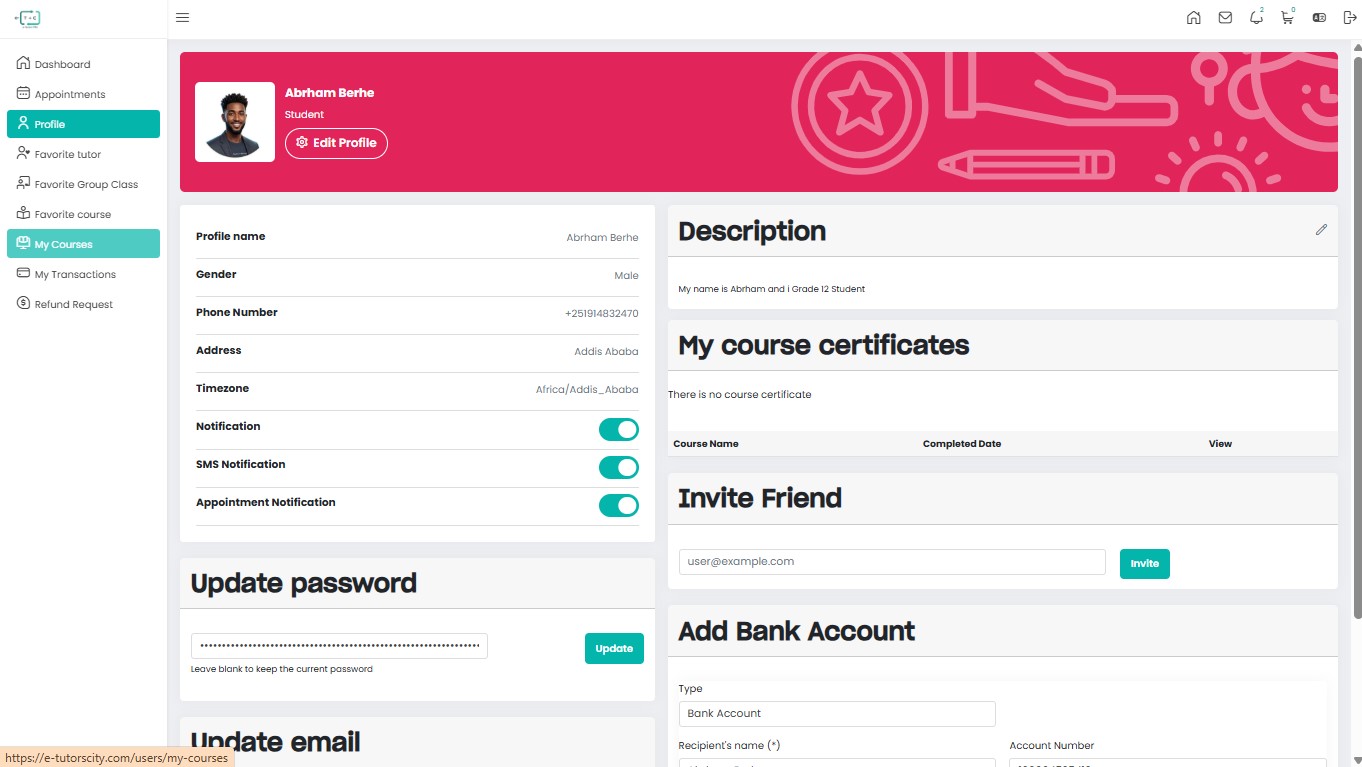
To update your information, log in to your dashboard and select Profile from the left-hand sidebar, or click the Profile Settings card on your main dashboard.
11.1.1. Personal Information
In the Information tab, you can manage your public and private data:
- Profile Image: Upload a professional photo to help tutors identify you.
- Full Name: Your official name as it appears to tutors and on certificates.
- Gender: Select your gender from the dropdown menu.
- Phone & Email: Your verified contact details. (Note: These can only be changed through the security settings).
- Bio: Add a brief description of your learning goals and background.
- Address: Provide your current city and region for localized curriculum support.
11.1.2. Account Security
Your security is our priority. In the Settings tab, you can perform the following actions:
Change Password
- Enter your Current Password.
- Type your New Password.
- Confirm the new password and click Update Password.
Change Email
- Enter your new email address.
- Follow the verification link sent to your new inbox to finalize the change.
11.1.3. Academic & Financial Management
The profile section also acts as a repository for your achievements and financial tools:
- My Course Certificates: View and download verified certificates for every tutorial or group class you complete.
- Add Bank Account: Link your bank details to receive refunds or manage scholarship payments.
- Invite Friend: Share your unique referral link to bring your peers to the platform.
11.1.4. Notification Preferences
Customize how you receive updates from E-Tutors City:
| Type | Description |
|---|---|
| System Notifications | Alerts for class start times and tutor messages. |
| SMS Alerts | Urgent verification codes and schedule changes sent to your phone. |
Keep it Updated Ensure your Timezone is correctly set in the profile area. This ensures that all appointment times displayed on your dashboard match your local time in Ethiopia.