14. Managing My Transactions
The My Transactions section provides a transparent record of all your bookings, course purchases, and group class enrollments. Use this area to verify payments and handle financial inquiries.
14.1. Accessing Your Transaction History
To view your financial records:
- Navigate to the Sidebar on the left side of your dashboard.
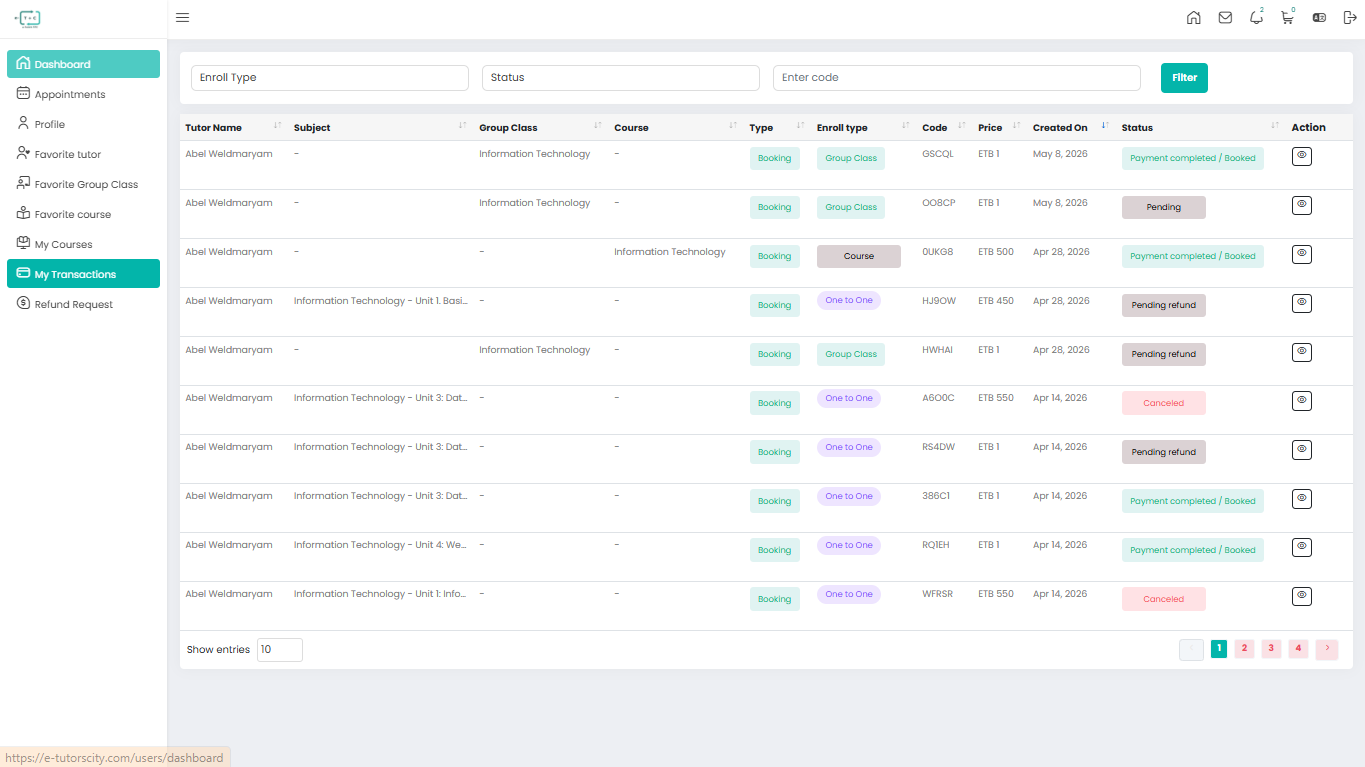
- Click on the My Transactions tab (highlighted in teal).
14.2. Understanding the Transaction Table
The transaction table provides a comprehensive breakdown of your activity. You can use the Filters at the top (Enroll Type, Status, or Code) to find specific entries.
| Column | Description |
|---|---|
| Tutor Name | The instructor associated with the booking or course. |
| Type | The nature of the transaction (e.g., Booking). |
| Enroll Type | Specifies if it was a Group Class, One-to-One session, or Course. |
| Code | A unique transaction ID used for support and tracking. |
| Price | The amount paid in ETB. |
| Status | The current state of the transaction (e.g., Payment completed, Pending, Canceled, or Pending refund). |
14.2.1. Viewing Payment Details
For more granular information about a specific payment, click the Eye Icon under the Action column. This will open the Payment Detail page, which includes:
- Transaction Metadata: Full breakdown of the tutor, original price, and final price.
- Timestamp: The exact date the transaction was created (e.g., May 8, 2026).
- Status Confirmation: A clear indicator if the payment is "Completed".
14.2.2. Refund Requests
If you encounter an issue—such as a tutor failing to join a 1-on-1 class or your own inability to attend—you can submit a refund request directly from the Payment Detail screen.
How to Request a Refund:
- Open the Payment Detail of the specific transaction.
- Locate the Refund Request box on the right.
- Provide a Reason: Enter a detailed explanation for your request in the text area.
- Submit: Click the teal Refund Request button.
Important Refund Policy: Refund requests must be submitted within 3 days after the class is completed. Requests made after this window may not be eligible for review.
💡 Pro Tip
If your transaction status is Pending, ensure your payment method has been authorized. You can monitor the Status column for live updates on when your access to the course or class will be activated.