5. Appointments
5.1. Managing Appointments
Navigate to Appointments.
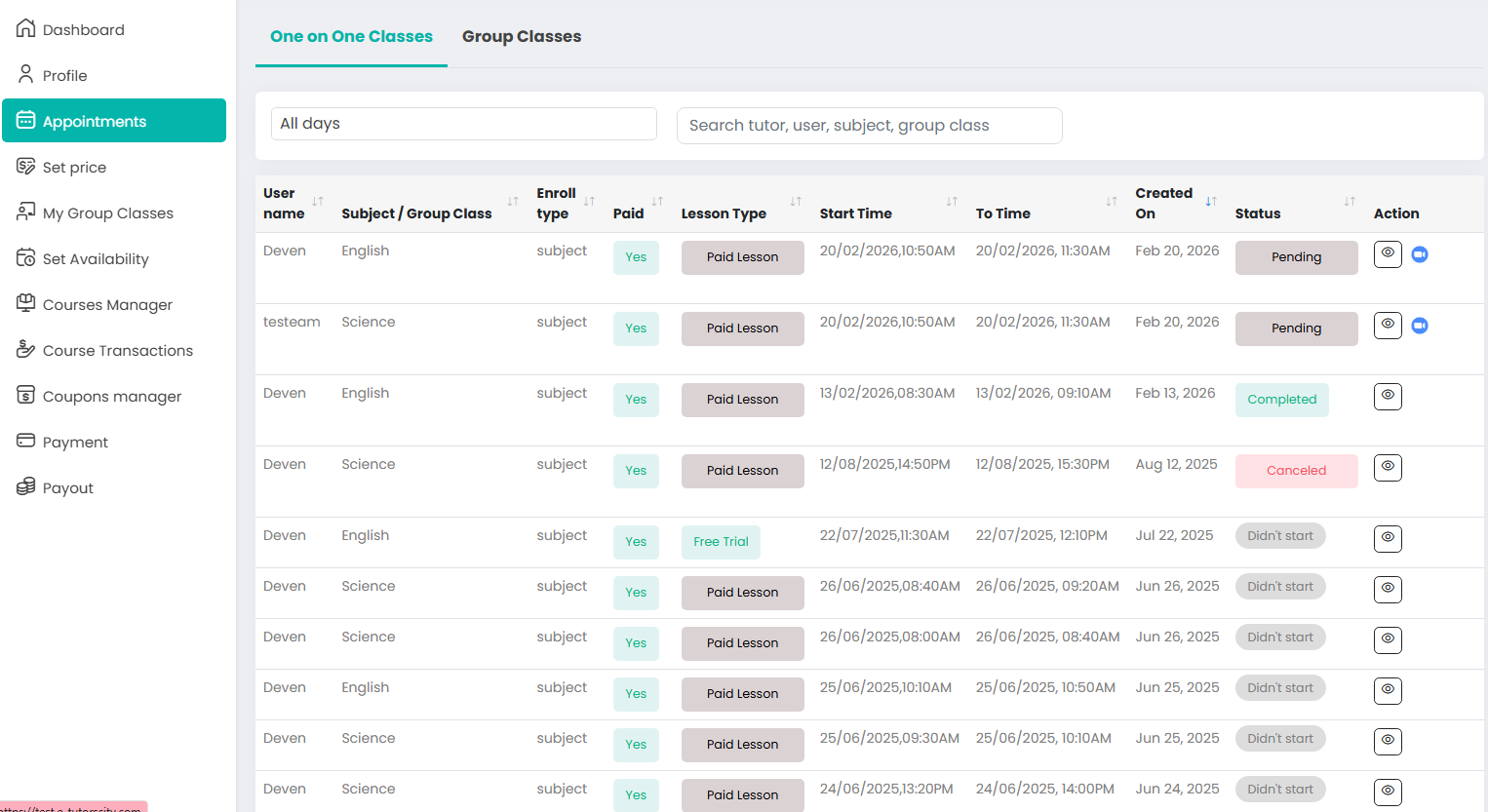
The Appointments section is your central hub for managing and reviewing all scheduled learning sessions. This page helps you track your lesson schedule, student participation, and current lesson statuses for both individual and group sessions.
To access this, click Appointments from the left-side navigation menu.
5.1.1 Appointment Tabs
The page is split into two primary sections to help you stay organized:
- One-on-One Classes: Individual tutoring sessions.
- Group Classes: Larger, multi-student learning sessions.
5.1.2. One-on-One Classes
This tab displays all individual appointments booked between you and a student.
Appointment Details Table
| Field | Description |
|---|---|
| User Name | The name of the student who booked the lesson. |
| Subject | The specific subject selected for the appointment. |
| Enroll Type | The booking category (e.g., subject-based). |
| Paid | Payment status of the session. |
| Lesson Type | Indicates if the session is Paid or Free. |
| Start / To Time | The scheduled beginning and ending time of the lesson. |
| Status | The current progress of the appointment. |
| Action | View icon to open full appointment details. |
Understanding Appointment Status
| Status | Meaning |
|---|---|
| ✅ Completed | The lesson was successfully conducted and finished. |
| ⏳ Pending | The lesson is scheduled and will start at the designated time. |
| ❌ Didn’t Start | The lesson was scheduled but did not begin as planned. |
Action: Viewing Details By clicking the View icon in the Action column, you can verify payment status, review specific booking notes, and confirm lesson timing.
5.1.3. Group Classes
The Group Classes tab displays all collective bookings. This section is designed to help you monitor student enrollment and manage the schedule for larger classes.
Each record includes:
- User Name: The participant associated with the booking.
- Group Class: The specific name/title of the class.
- Action: Click "View list appointments" to see all scheduled sessions under that specific group class.
5.1.3. Before Your Session
To ensure the best experience for your students, please complete this checklist 10 minutes before every class:
Virtual Classroom (Appointments)
The platform provides an integrated virtual classroom for all 1-on-1 appointment sessions, powered by Zoom.
Key Features
-
Live Video & Audio
Conduct real-time sessions with students using high-quality video and audio. -
Text Chat
Communicate instantly during the session using the built-in chat feature. -
Digital Whiteboard
Explain concepts visually using an interactive whiteboard. -
File Sharing
Share learning materials such as PDF, DOC, and PPT files during the session. -
Automatic Session Timing
Sessions start and end automatically based on the scheduled appointment time.
5.1.4. 4Session Access
- Students can join the session from their Appointments page.
- Tutors can start or join the session directly from their dashboard.
- The session link is generated automatically by the system.
5.1.5. Connection Handling
If connectivity issues occur during a session:
-
Automatic Reconnection
The system will attempt to reconnect you automatically. -
Manual Rejoin
You can rejoin the session at any time using the original session link.
Pre-Session Checklist
- Internet: Ensure a stable internet connection for the best experience.
- Start Time: Joining is typically allowed a few minutes before the scheduled start time.
- Audio: Use headphones for clear communication.
- Materials: Have all PDFs, slides, or digital whiteboards ready.
- Zoom: Verify your Zoom link is functioning and you are logged in.