3. Dashboard
3.1. Accessing Dashboard
After logging in, you will land on the Tutor Dashboard.
3.1.1. Tutor Dashboard Overview
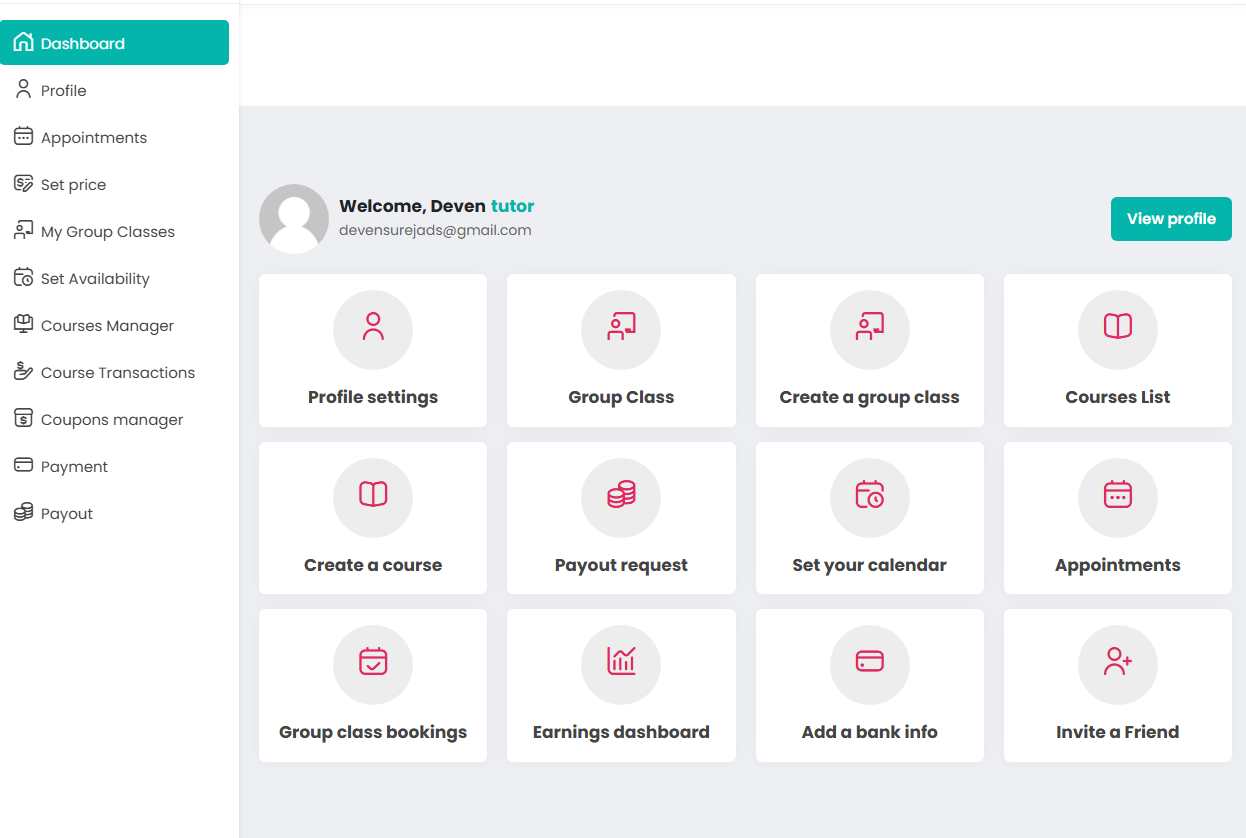
The Tutor Dashboard is your central control panel. From here, you manage your teaching activities, courses, appointments, and earnings. After logging in, you will be directed here automatically.
3.1.2. Main Quick Action Cards
These cards provide one-click access to the most important parts of your teaching business.
| Action | Description |
|---|---|
| 📊 Dashboard | Your central overview featuring real-time statistics. |
| 👤 Profile Settings | Manage personal details, qualifications, and account settings. |
| 👥 Group Class | View and manage all created group classes. |
| ➕ Create Group Class | Launch a new class with subjects, grades, and schedules. |
| 📅 Set Your Calendar | Define your teaching days so students can book sessions. |
| 📚 Courses List | Access, edit, and review your existing course content. |
| 🛠️ Create a Course | Build self-paced lessons and upload materials for enrollment. |
| 🤝 Appointments | Manage your 1-to-1 sessions and view upcoming meetings. |
| 🏦 Add Bank Info | Securely update your payment details for payouts. |
| 💰 Payout Request | Submit a request to withdraw your available earnings. |
| 📈 Earnings | Track total income and review your transaction history. |
3.1.2. Left Navigation Menu
The sidebar provides deep links to every module in the E-Tutorcity ecosystem:
- Dashboard: Your home overview.
- Profile: Personal information and branding.
- Appointments: 1-to-1 session management.
- My Group Classes: Live class management.
- Set Availability: Calendar and time-slot configuration.
- Courses Manager: Self-paced course builder.
- Course Transactions: Sales history.
- Coupons Manager: Create discount codes for marketing.
- Payment & Payout: Financial management and withdrawal tools.