7. 1-on-1 Class
7.1. Managing Availability
To configure your teaching schedule and session options, go to the Set Availability section from the sidebar. This module includes three tabs:
- Schedule
- Coupon
- Free Session
7.2. Schedule (1-on-1 & Group Classes)
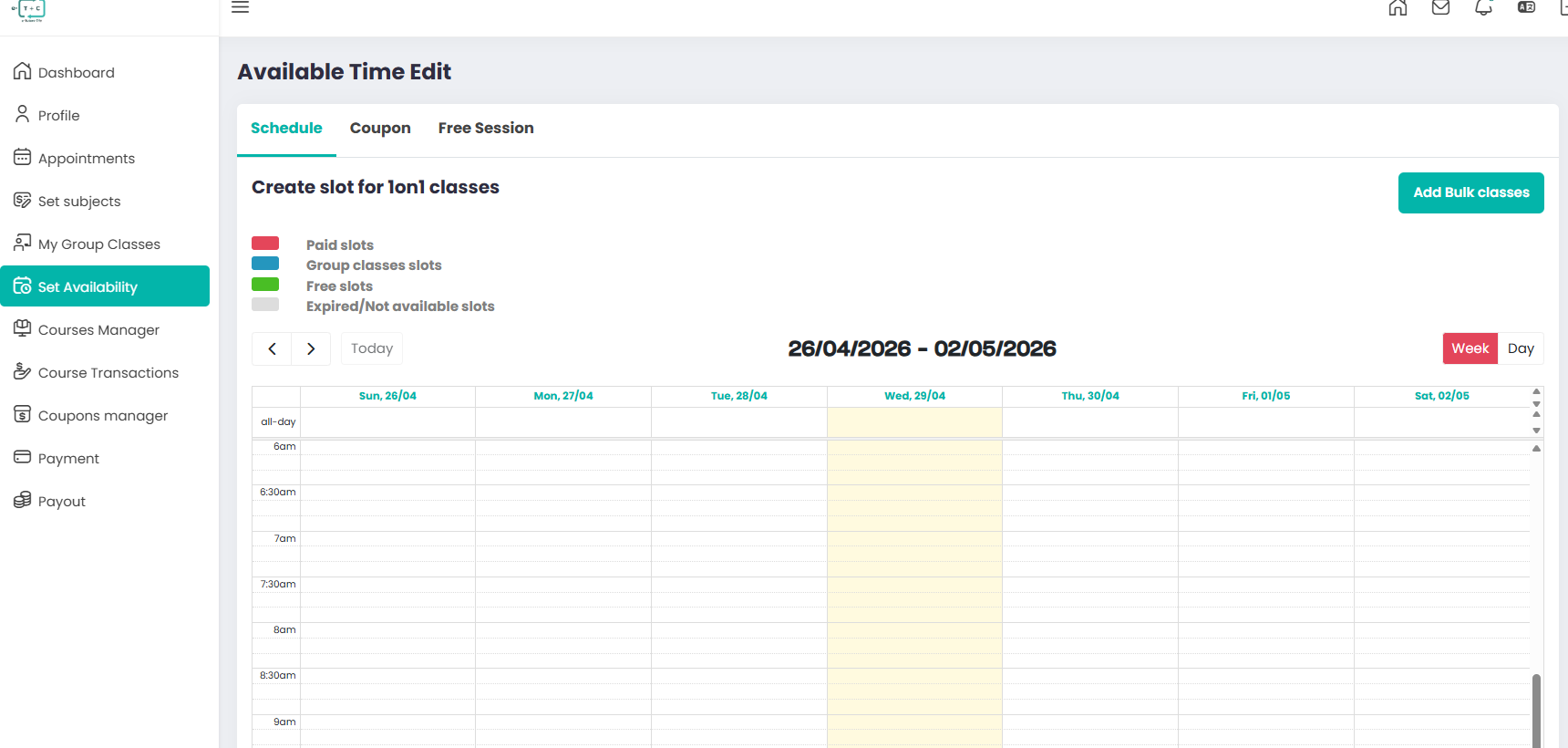
Navigate in your sidebar dashboard Set Availability >.
7.2.1. Steps to Configure
-
Select Week
Navigate using the arrows to choose your preferred week. -
Create Time Slots
Click and drag on the calendar grid to define availability.
Toggle between Week and Day views as needed. -
Save Changes
Ensure you save your schedule so students can book sessions.
7.2.2. Slot Types
- 🔴 Paid Slots — 1-on-1 sessions
- 🔵 Group Class Slots — Multiple students
- 🟢 Free Slots — Trial or free sessions
- ⚪ Unavailable/Expired — Not bookable
7.3. Coupon (Discount for 1-on-1 Classes)
The Coupon tab allows you to create discount codes for your sessions.
7.3.1. Fields Explanation
- Name — Internal name for the coupon
- Code — Unique code students will enter
- Discount Type — Percentage (%) or fixed amount
- Discount Value — Discount amount
- Limit Number of Use — Maximum times the coupon can be used
- Start Date / Expired Date — Validity period
- Active — Enable or disable the coupon
7.3.2. How It Works
- Coupons apply mainly to paid 1-on-1 sessions
- Students enter the coupon code during booking
- The system automatically applies the discount
- Expired or inactive coupons cannot be used
7.4. Free Session
Use this tab to create free sessions for students.
7.4.1. Key Features
- Create Free Slots directly on the calendar
- Recurring Free Class option for repeating sessions
- Supports promotional or trial classes
7.4.2. Slot Behavior
- Free sessions appear as green slots in the schedule
- Students can book without payment
- Still follows scheduling rules (time, availability, etc.)
7.5. System Rules
-
Booking Limitation
Students can only book within your available slots -
Lead Time Requirement
Booking must be completed at least 15 minutes before the session -
Auto Blocking
Slots are locked if less than 15 minutes remain -
Session Automation
Sessions start and end automatically based on schedule -
Notifications
Both tutor and student receive reminders before sessions
Availability Check: Always double-check your time zone settings in your profile before setting your schedule to avoid late-night surprises!