4. Profile Settings
4.1. Profile Management
Keeping your profile updated is the best way to attract more students. To begin, navigate to the Profile tab in your left menu.
4.1.1. Profile Information Fields
(In this section, you will detail the specific fields tutors need to fill out, such as Bio, Education, and Subject Expertise.)
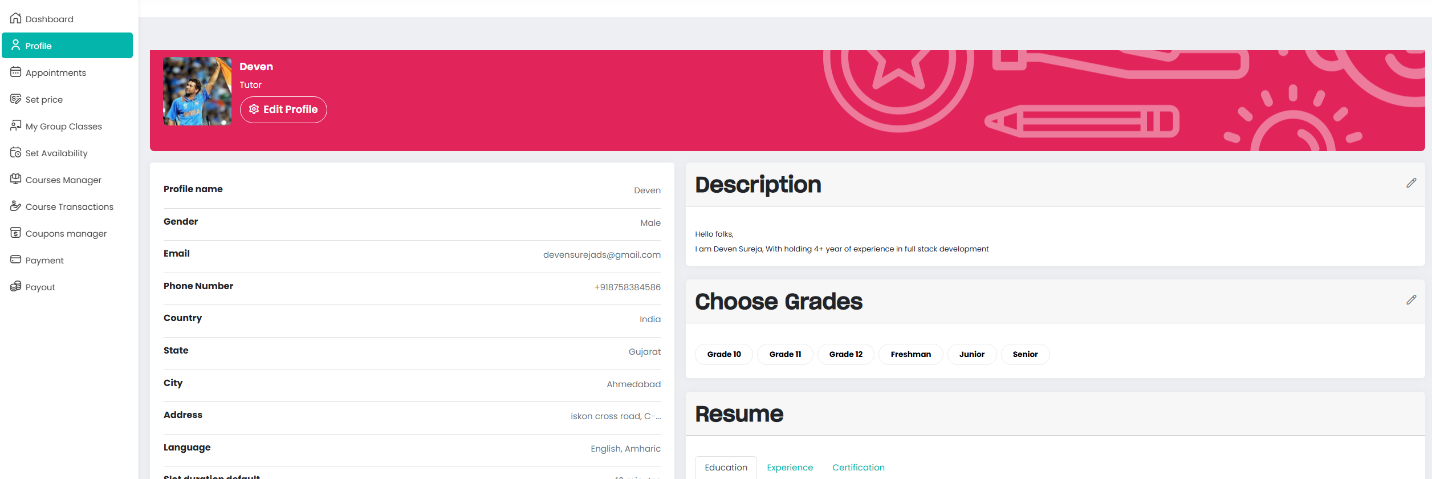
Personal Information Details
| Field | Description |
|---|---|
| Profile Name | Your full name as it will appear to students on the platform. |
| Gender | Your gender identification for profile records. |
| Your registered email address used for secure login and official platform communication. | |
| Phone Number | A valid contact number for account verification and SMS alerts. |
| Country | Your current country of residence. |
| State | The state, province, or region where you are located. |
| City | Your local city. |
| Address | Your complete residential or professional address for billing and verification. |
| Language | The primary and secondary languages you use for teaching. |
| Slot Duration Default | Your standard session length (e.g., 40 minutes) used for automatic scheduling. |
| Zip Code | The postal or zip code for your specific location. |
4.1.2. Description & Intro
This is your "elevator pitch." Use the Description section to tell students why they should choose you.
What to include:
- Your total years of teaching experience.
- Your specific teaching methods (e.g., "interactive," "exam-focused").
- What students can expect during a typical lesson.
4.1.3. Target Grades
Select the specific grade levels you are qualified to teach.
- Example: Grade 1, Grade 5, or Grade 12.
- Why it matters: Our search filters use these tags to match you with the right students.
4.1.4. Professional Resume
Build credibility by adding your academic and professional history in these three categories:
🎓 Education
- Title: Degree or Qualification name.
- Details: Field of study and institution.
- Years: Starting and Graduation year.
- Verification: Upload your diploma or transcript.
💼 Experience
- Job Title: Your role (e.g., "Senior Math Teacher").
- Achievements: List your key responsibilities and student success rates.
- Evidence: Upload recommendation letters or contracts.
📜 Certifications
- Upload any specialized teaching certificates (e.g., TEFL, Subject-specific licenses).
4.1.5. Introduction Video
A video allows students to hear your voice and see your teaching style.
- Option A: Upload a video file directly (MP4, WebM, 3GP).
- Option B: Paste a YouTube link for faster loading.
🎥 Adding a YouTube Video
When adding an introduction video or course preview via YouTube, the platform requires only the Video ID, not the full web link.
- Option B: Paste a YouTube link for faster loading.
How to find your Video ID
- Look at your YouTube URL:
https://www.youtube.com/watch?v=xRjlRfpsHGw - Copy only the characters appearing after the
v= - ID =
xRjlRfpsHGw
Pro-Tip: Make sure there are no extra spaces or symbols (like &t=10s) after the ID, or the video may not load correctly on your profile.
Video Tip Keep your video between 30–60 seconds. Speak clearly, smile, and mention the subjects you are most passionate about!
4.1.6. Notifications & Security
🔔 Notification Settings
Choose how you want to stay updated. You can toggle these ON or OFF:
- General: Platform news and updates.
- SMS: Critical alerts sent to your phone.
- Appointments: Instant alerts for new bookings or changes.
🔐 Password Security
To update your password:
- Enter your new password.
- Click Update. Leave the field blank if you do not wish to change your current password.
✅ Profile Best Practices
- Professionalism: Use a high-quality, friendly headshot.
- Clarity: Write your description with the student (or parent) in mind.
- Evidence: Always upload documents for your education and certifications to gain "Verified" status.
- Currency: Update your resume every 6 months to include new achievements.